I was recently asked how do I integrate RSS Feeds into my social media. Now, you have to keep in mind that we aren’t talking about Facebook, Instagram, or even Mastodon. My favorite social media software is Hubzilla. Today, I will show you how I add an RSS Feeds to my Social Media timeline.
Obviously, first, you will need a Hubzilla account. I am not going to cover that in this post. I am sure some day I will cover that. See this post that explains the organization, or lack of, regarding this site.
Ensure that the administrator of your Hubzilla instance has enabled RSS Feeds as Connections.
Keep in mind, I am using the Hubzilla Theme called Adminlte/Superhero. The images below may differ from what you see, depending on what Hubzilla Theme you are using. However, the idea is the same and the verbiage is going to be close, if not identical.
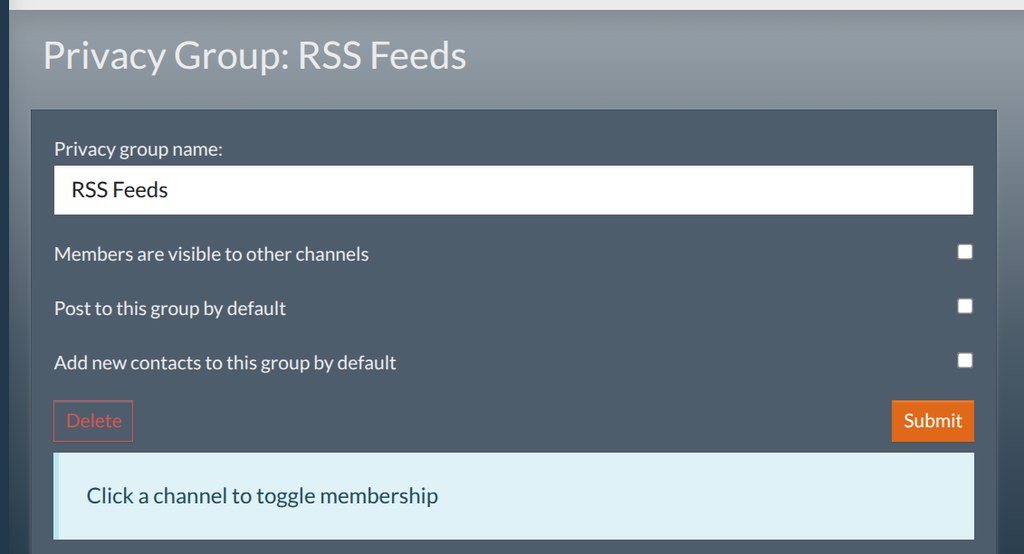
The first part of this Method to My Madness is how I organize RSS Feeds. Hubzilla has a neat feature called Privacy Groups. I like to create a new Privacy Group called RSS Feeds. This way, if I just want to only see RSS Feeds, I can. But usually I like them to be integrated into my normal social media timeline or network as it is called in Hubzilla.
You will have to add the Privacy Groups app if you haven’t done so already. Go to apps. Go to Available apps. Install Privacy Groups.
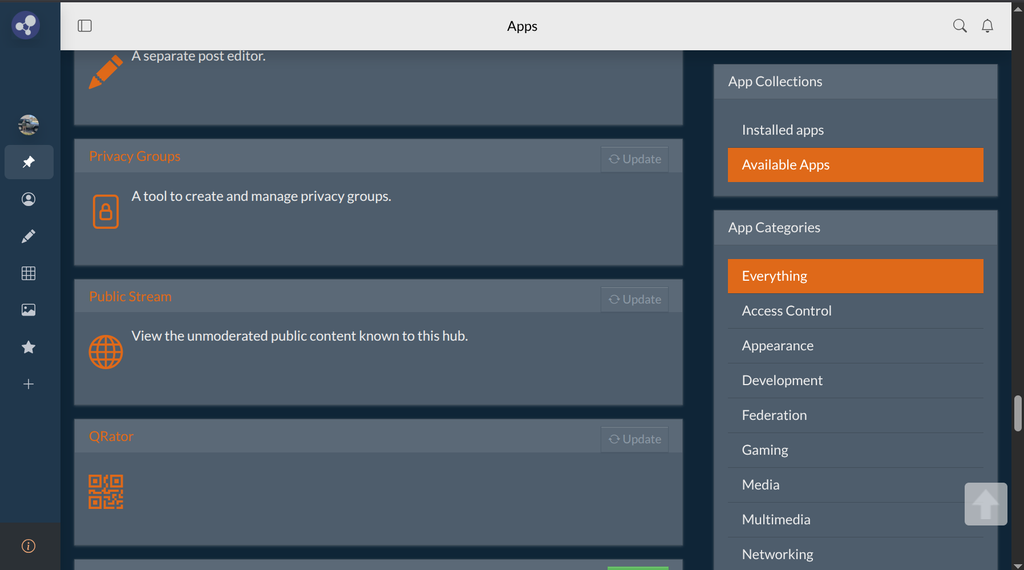
Now that you have the Privacy Groups app. Create a new Privacy Group called RSS Feeds. Make sure you leave the checkboxes unchecked.
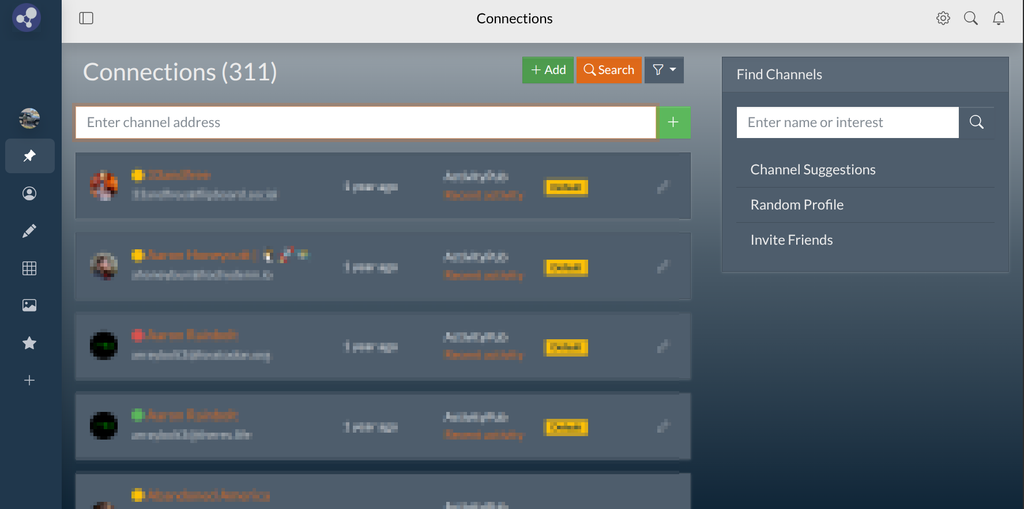
Now, go to your Connections app as if you were to connect with another Fediverse account. Click Add, then put your cursor in the Enter Channel Address text field.
In the Enter Channel Address text field, paste the URL link of the RSS Feed you would like to add.
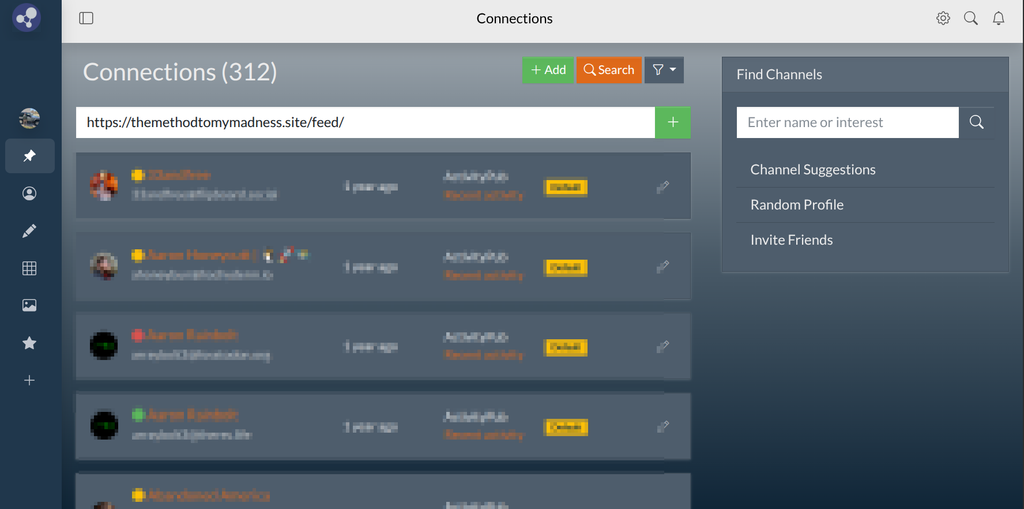
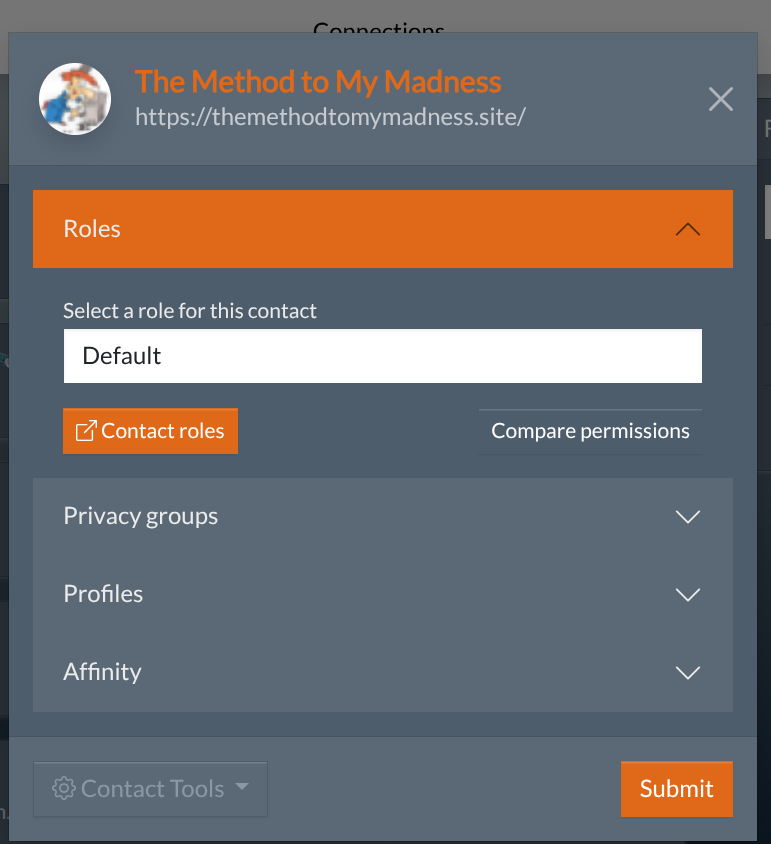
Tap the green + button and it will begin to add the RSS Feed as a connection. A window will popup and you can customize this connection. I leave the Role as the Default.
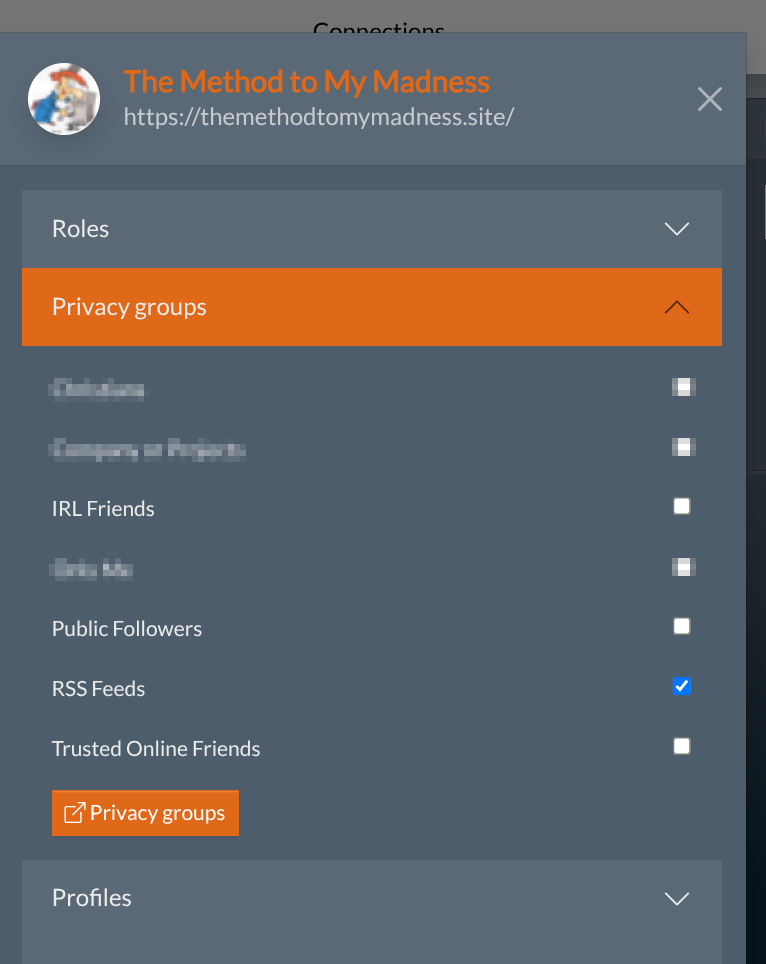
Next, edit drop down the Privacy Group and select the newly created RSS Feeds check box.
Edit the Affinity Tool to your liking if you are using that. More on the Affinity tool later in a different post.
Then tap Submit! Your contact has been added. The RSS Feed will now integrate into your Social Media Timeline, called the Network in Hubzilla.
Tap on your Network app. If you only want to see your RSS Feeds, you can select Privacy Groups from the Stream Filters.
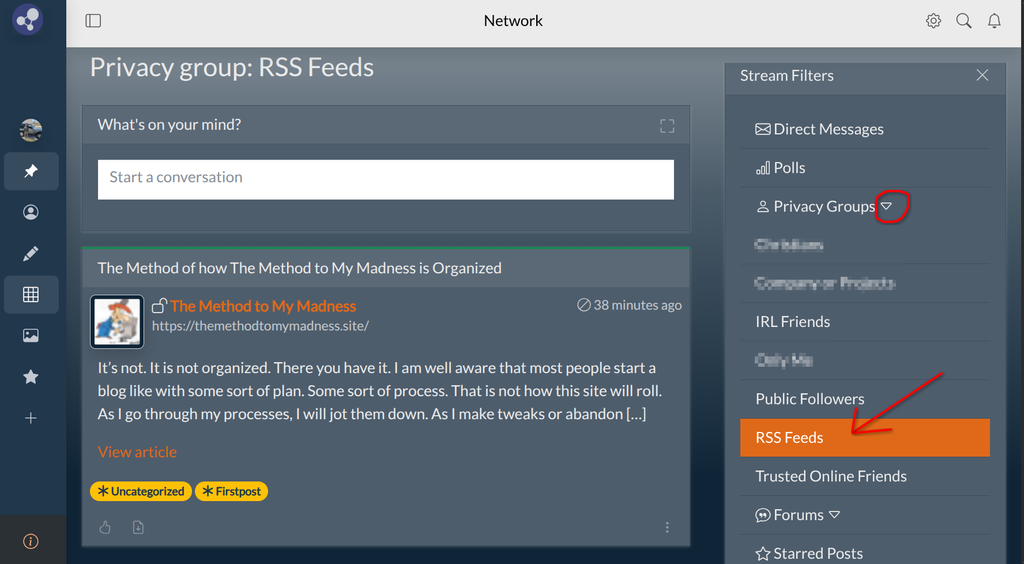
And that is how I add RSS Feeds to my Social Media (Hubzilla)